


A lot of you have asked me how I do my Substack Lives through Zoom. The video above is the whole thing, every click, in the order you’ll actually click them. This is the written version, for when you’ve watched it once and just need the steps.
First, what this is not. It’s not about broadcasting a Zoom meeting full of people. You can do that with the exact same steps, and I say so in the video. But that’s not what most of you are asking.
What you’re asking is: how do I do my Substack Live, just me, or me and a guest, through Zoom instead of through Substack’s own camera?
Why bother?
Because Substack Live, right now, gives you no appearance filter, no portrait lighting, no effects of any kind. Whatever your laptop camera sees is what goes out. Then it crops in tight on your face, so the background you spent all that time designing loses its edges. And the quality while you’re live can get pixelated.
Three blows to your on-camera presence, right at the moment you’re trying to feel confident. No knock on Substack. It’s a new platform, they’re building fast, and I’d bet filters are coming. But today, that’s the deal.
And if you’re like me, and like most of the people I attract, you’re not vain. You don’t care that much how you look. But you know you’re more relaxed, more in the flow, when you know you look good. You think less. You judge yourself less. That’s not vanity. That’s presence.
So we do the live in Zoom. You get your filters, your lighting, your full frame and your whole background, you and your guest side by side with no black bars, a crisp stream, and a cloud recording as a backup.
Zoom does the looking good. Substack does the broadcasting.
What’s in the video
The one-time setting on the Zoom website that turns live streaming on. Takes a minute, and you never touch it again. Here’s the direct link: zoom.com/profile/setting
The every-time flow, which I tested until I found the version with the fewest clicks and the fewest stumbles: set up the live on Substack first, then start any Zoom and connect it.
The three nerdy items you copy from Substack into Zoom, in order, and the one that Substack hides from you.
The one weird rule: always “Schedule for a future date,” even when you’re going live right now. I explain why at the end of the video.
What actually happens the second you hit Go Live, and why the loading bar is lying to you.
How to watch your chat, what happens if you unmute the wrong tab, and why you won’t break the stream by clicking around.
The part that makes it fun: the stream follows your view, so you can switch between gallery and speaker like a control-room switcher.
How to stop (on the Zoom side, not Substack), where the recording lands, and the backup plan if Substack hiccups.
The one thing I’d tattoo on your hand
When you hit Go Live, you are live. Not in ten seconds, not after the progress bar finishes. Within a second or two of the click. The page is going to churn and reload and tell you it’s “preparing” and “setting up” for up to thirty seconds, and the whole time, people are already seeing your face.
So: hit the button, take one breath, start talking. Let the screen catch up to you. If you wait to see yourself on the Substack side before you speak, you’re late, and that blank stare is the opening of your replay.
The cheat sheet
Two pages, every click from this video, the one-time setup and the every-time flow, plus the reminder instructions to paste into your Zoom settings so they show up on the stream page every time you go live. You never have to watch me do this again. It’s free.
Four things before you go do this
Always use “Schedule for a future date.” Even for a live that starts in five minutes. It’s the only way Substack hands you all three items, and without the third one you’ll be flying blind at the exact moment you need to be cool, calm, and collected.
Practice, privately, before you do it for real. Set it to paid subscribers, uncheck the email notification, and run it at least once alone and once with a friend so you see how the interview format behaves. You’ll see the delay, the tabs, and the view switching, and none of it will surprise you on the day.
Broadcasting a full workshop with people in your Zoom? Same steps. Everybody in the room is on Zoom, and your Substack list watches the broadcast. I do my live clinics this way. One thing: the stream sees whatever you, the host, see. So unless you want your Substack audience looking at a gallery grid of everyone who showed up, stay in speaker view or multi-speaker view. Never gallery.
If you noticed my resolution said 1080p and yours says 720: 1080p is full HD, 720 is half. There are a few ways to unlock full HD on your Zoom for streaming and recording, including one fairly new way that’s more affordable than it’s ever been. That’s a whole training on its own.
It was unfamiliar. Now it isn’t.
And the full HD thing, plus everything else about running a Zoom like a producer, is this Friday.
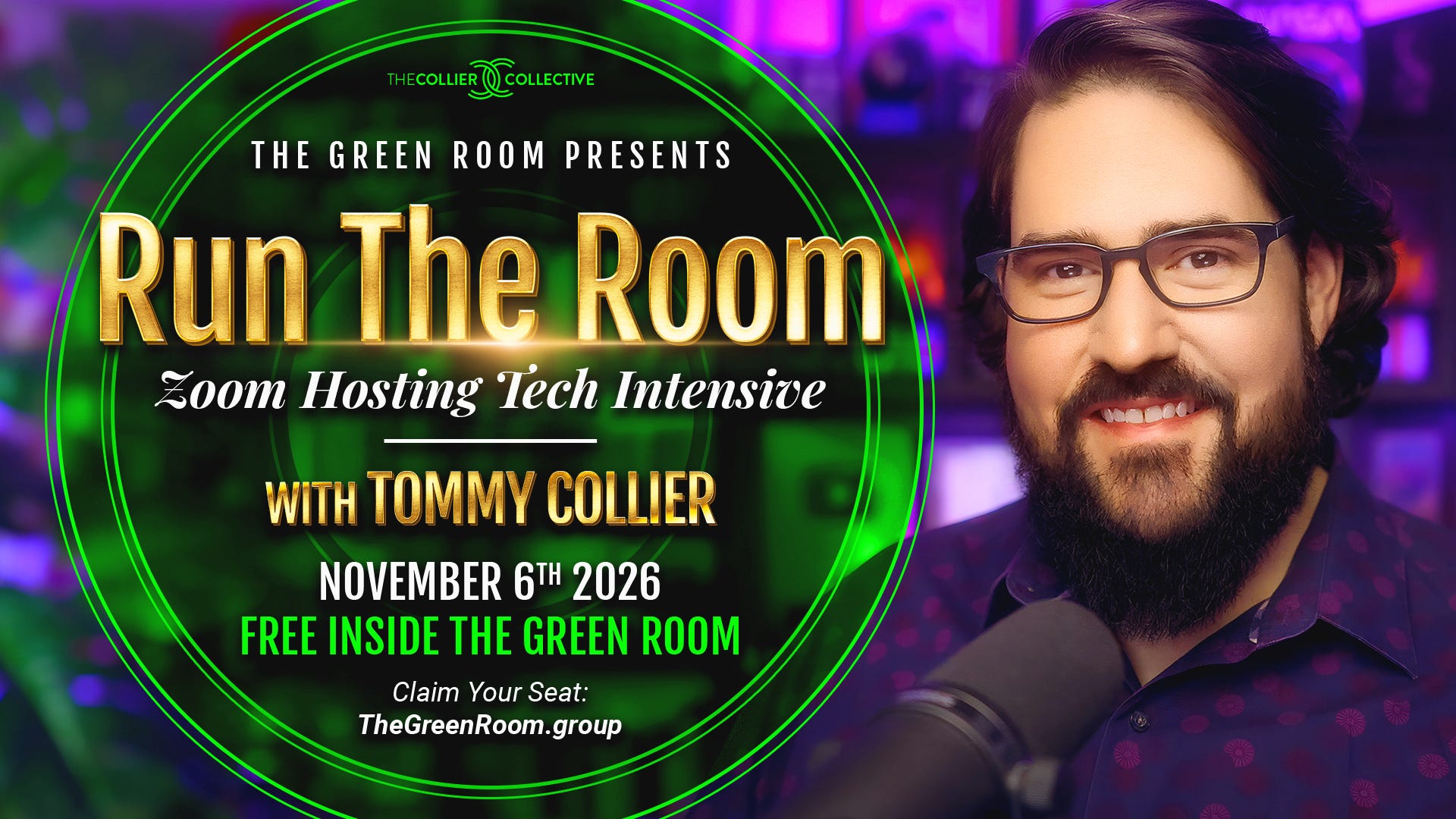
Run the Room: The Zoom Hosting Tech Intensive. Friday, November 6, 1pm to 5pm Eastern, live on Zoom. All my Zoom HD secrets, plus everything else about running your Zoom rooms like a producer: every setting you need and every one you don’t, registration pages, polls, the end-of-meeting survey, co-hosts, breakouts, screen sharing with music that comes through their speakers, the clean opening graphic, and the whole recording and replay workflow. Everything I’ve learned from running literally thousands of paid client Zoom sessions since 2020. Four hours, start to finish, with a full replay and a Zoom hosting handbook.
It’s free for everyone in The Green Room, my paid room here on Substack.
Already in The Green Room? Your seat is saved. It’s on your Backstage Page.
If this was helpful, like it and restack it, and if you know a fellow Substacker who could use it, send it their way. Tell me in the comments how it goes for you.
📸 Tommy


